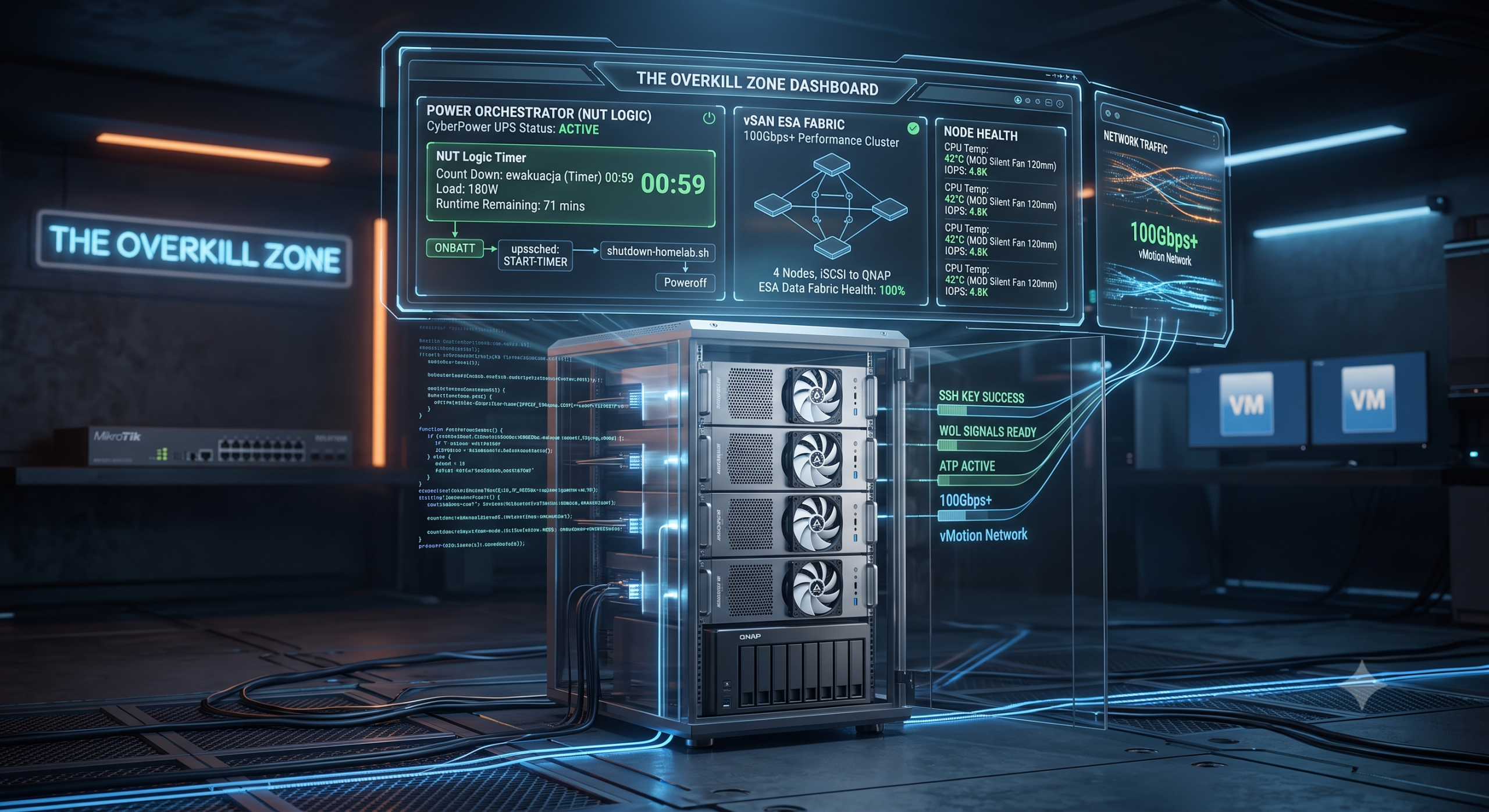
 Every homelabber fears the sudden click of a UPS kicking into battery mode. When you run a complex infrastructure, a hard power cut can corrupt a storage array, ruin backups, or cause split-brain scenarios in high-availability clusters. The goal of this project is to achieve absolute peace of mind: a fully automated, intelligent orchestration system that gracefully tears down the entire environment during an extended outage, and safely brings it back online when power is restored.My physical homelab consists of a 4-node VMware ESXi cluster running on Minisforum hardware, a QNAP NAS for storage, a Windows Server 2025 handling Veeam backups, and a CyberPower UPS. The „brain” of this operation is a NUT (Network UPS Tools) server installed directly on a Debian Linux environment.
This guide breaks down exactly how to configure the logic, the scripts, and the fail-safes to ensure your data remains protected.
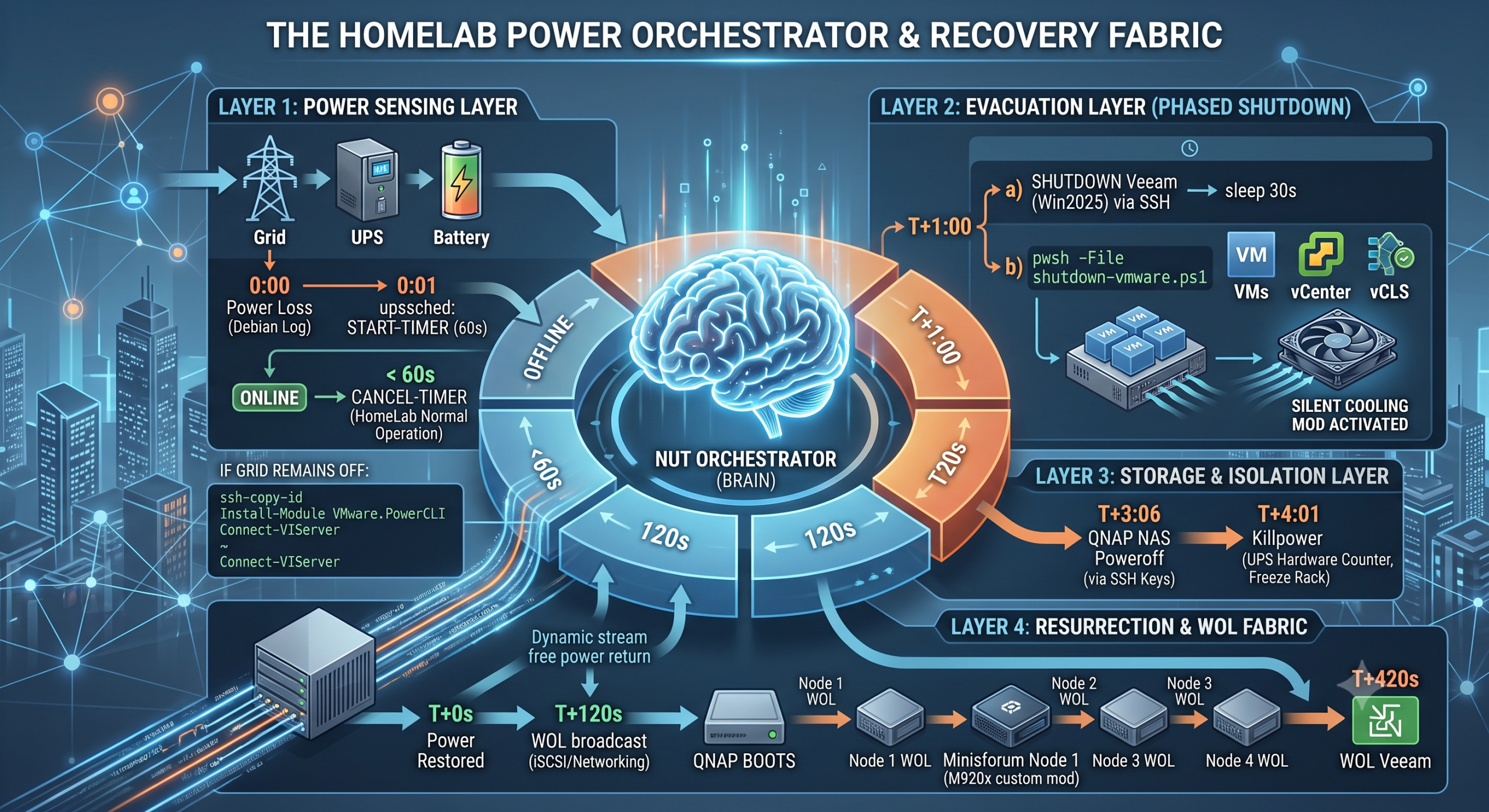
The Orchestration Master Plan
To avoid shutting down the datacenter during minor voltage drops, the system follows a strict chronological logic:
-
- 0:00 (Power Loss): The UPS switches to battery, and Debian logs the event.
- 0:00 – 0:59 (The Grace Period): The NUT scheduler (
upssched) starts a 60-second countdown named „ewakuacja”. If the power blinks and returns within this window, the timer is instantly canceled, and the homelab continues running uninterrupted. - 1:00 (Evacuation Begins): The timer finishes, triggering the main
shutdown-homelab.shscript. Veeam and ESXi are safely shut down, massively dropping the wattage load on the UPS to preserve its remaining capacity. - 3:06 (Storage Teardown): Debian connects to the QNAP NAS via SSH and commands it to power off safely, spinning down the drives.
- 4:01 (The Killpower Command): A hardware timer in the UPS reaches zero, physically cutting power to the rack outlets to freeze the homelab in a safe state, even if grid power returns midway through the process.
- Resurrection: Once grid power returns, the UPS restores outlet power. The QNAP boots, loads Debian, waits for stability, and automatically sends Wake-On-LAN (WOL) magic packets to the ESXi hosts and the Veeam server to bring the environment back online.
Phase 1: Configuring the NUT Server
First, install the Network UPS Tools and SNMP packages on your Debian host:
| BASH |
|---|
apt update && apt install nut nut-snmp |
Next, define your UPS connection parameters in /etc/nut/ups.conf:
| /etc/nut/ups.conf |
|---|
[cyberpower]
driver = snmp-ups
port = 0.0.0.0
community = public
snmp_version = v2c
mibs = auto
snmp_timeout = 5
snmp_retries = 3
|
Create a highly privileged admin user in /etc/nut/upsd.users:
| /etc/nut/upsd.users |
|---|
[admin]
password = xxx
actions = SET
instcmds = ALL
upsmon master
|
Tell the NUT monitor to watch this UPS in /etc/nut/upsmon.conf:
| /etc/nut/upsmon.conf |
|---|
MONITOR cyberpower@localhost 1 admin xxx master
MINSUPPLIES 1
SHUTDOWNCMD "/usr/local/bin/shutdown-homelab.sh"
POLLFREQ 5
POLLFREQALERT 1
HOSTSYNC 15
|
Phase 2: Preparing Dependencies (PowerCLI and SSH)
To allow Debian to natively command the VMware environment, we need to install PowerShell and the VMware PowerCLI module directly on Linux.
Install PowerShell 7.4.2 and its dependencies:
| BASH |
|---|
apt-get install -y libunwind8 libicu-dev curl curl -L -o /tmp/powershell.tar.gz https://github.com/PowerShell/PowerShell/releases/download/v7.4.2/powershell-7.4.2-linux-x64.tar.gz mkdir -p /opt/microsoft/powershell/7 tar zxf /tmp/powershell.tar.gz -C /opt/microsoft/powershell/7 chmod +x /opt/microsoft/powershell/7/pwsh ln -s /opt/microsoft/powershell/7/pwsh /usr/bin/pwsh |
Install VMware PowerCLI and disable telemetry/certificate warnings:
| BASH |
|---|
pwsh -Command "Install-Module -Name VMware.PowerCLI -Scope CurrentUser -Force" pwsh -Command "Set-PowerCLIConfiguration -InvalidCertificateAction Ignore -ParticipateInCEIP \$false -Confirm:\$false -Scope User" |
Generate an RSA key pair (ssh-keygen -t rsa -b 4096) and copy it to your QNAP (ssh-copy-id admin@0.0.0.0) for passwordless execution. Do the same for your Windows Server hosting Veeam after installing the OpenSSH feature (Add-WindowsCapability -Online -Name OpenSSH.Server~~~~0.0.1.0) and placing the public key in C:\ProgramData\ssh dministrators_authorized_keys.
Phase 3: The Shutdown Sequence
We split the logic into two scripts. The first handles the delicate VMware environment.
Create /usr/local/bin/shutdown-vmware.ps1:
| POWERSHELL: /usr/local/bin/shutdown-vmware.ps1 |
|---|
$vCenterIP = "0.0.0.0" $vCenterUser = "administrator@xxx.local" $vCenterPass = "HasloDoVCenter" $vCenterVMName = "XXX" Write-Host "1. Laczenie z vCenter..." Connect-VIServer -Server $vCenterIP -User $vCenterUser -Password $vCenterPass Write-Host "2. Zamykanie wszystkich maszyn wirtualnych (oprocz vCenter i vCLS)..." $vms = Get-VM | Where-Object { $_.PowerState -eq "PoweredOn" -and $_.Name -notmatch "vCLS" -and $_.Name -ne $vCenterVMName } if ($vms) { $vms | Stop-VMGuest -Confirm:$false Write-Host "Czekam 3 minuty na bezpieczne zamkniecie systemow operacyjnych..." Start-Sleep -Seconds 180 } Write-Host "3. Zamykanie samego vCenter..." Get-VM -Name $vCenterVMName | Stop-VMGuest -Confirm:$false Write-Host "Czekam 2 minuty na zgasniecie vCenter..." Start-Sleep -Seconds 120 Write-Host "4. Przechodzenie na bezposrednie zamykanie hostow ESXi (Minisforum)..." $hosts = Get-VMHost | Where-Object { $_.ConnectionState -eq "Connected" } foreach ($esxi in $hosts) { Write-Host "Wysylam sygnal zamkniecia do hosta: $($esxi.Name)" Stop-VMHost -VMHost $esxi -Force -Confirm:$false } Disconnect-VIServer -Server * -Force -Confirm:$false |
Now, create the master orchestrator script at /usr/local/bin/shutdown-homelab.sh:
| BASH: /usr/local/bin/shutdown-homelab.sh |
|---|
#!/bin/bash LOGFILE="/var/log/homelab-shutdown.log" QNAP_IP="0.0.0.0" VEEAM_IP="0.0.0.0" echo "$(date) - START PROCEDURY SHUTDOWNU ZASILANIA!" >> $LOGFILE echo "$(date) - 1. Wysylam sygnal zamkniecia do serwera Veeam (Windows)..." >> $LOGFILE ssh Administrator@$VEEAM_IP "shutdown /s /t 10 /c "NUT Power Outage - Bezpieczne zamykanie" /d p:0:0" >> $LOGFILE 2>&1 sleep 30 echo "$(date) - 2. Uruchamiam skrypt gaszenia VMware i vSAN..." >> $LOGFILE pwsh -File /usr/local/bin/shutdown-vmware.ps1 >> $LOGFILE 2>&1 echo "$(date) - Czekam 2 minuty przed zamknieciem macierzy (QNAP)..." >> $LOGFILE sleep 120 echo "$(date) - 3. Wysylam sygnal poweroff do QNAP..." >> $LOGFILE ssh admin@$QNAP_IP "/sbin/poweroff" >> $LOGFILE 2>&1 |
Make both scripts executable using chmod +x.
Phase 4: The 60-Second Delay Logic (upssched)
To prevent the homelab from shutting down during a 10-second power blip, configure upssched.
Add these flags to /etc/nut/upsmon.conf:
| /etc/nut/upsmon.conf |
|---|
NOTIFYCMD /sbin/upssched NOTIFYFLAG ONLINE SYSLOG+WALL+EXEC NOTIFYFLAG ONBATT SYSLOG+WALL+EXEC |
Define the timer behavior in /etc/nut/upssched.conf:
| /etc/nut/upssched.conf |
|---|
CMDSCRIPT /usr/local/bin/upssched-cmd PIPEFN /run/nut/upssched.pipe LOCKFN /run/nut/upssched.lock AT ONBATT * START-TIMER ewakuacja 60 AT ONLINE * CANCEL-TIMER ewakuacja |
Create the trigger script /usr/local/bin/upssched-cmd:
| BASH: /usr/local/bin/upssched-cmd |
|---|
#!/bin/bash case $1 in ewakuacja) echo "$(date) - upssched: Minelo 60 sekund od zaniku zasilania! Uruchamiam zamykanie..." >> /var/log/homelab-shutdown.log /usr/local/bin/shutdown-homelab.sh ;; *) logger -t upssched-cmd "Nieznana komenda: $1" ;; esac |
(Remember to run chmod +x /usr/local/bin/upssched-cmd and systemctl restart nut-monitor.service).
Phase 5: The Automated Resurrection
A good outage orchestrator also handles the recovery. By installing the wakeonlan package (apt-get install -y wakeonlan), Debian can broadcast magic packets to wake the servers in a specific order.
Create /usr/local/bin/startup-homelab.sh:
| BASH: /usr/local/bin/startup-homelab.sh |
|---|
#!/bin/bash LOGFILE="/var/log/homelab-startup.log" echo "$(date) - ZASILANIE PRZYWROCONE. URUCHAMIAM PROCEDURY..." >> $LOGFILE # Wait for QNAP to mount RAID and initialize iSCSI/Networking echo "$(date) - 1/4: Czekam 120s na pelna gotowosc QNAP..." >> $LOGFILE sleep 120 # Wake up ESXi Minisforum nodes echo "$(date) - 2/4: Budze hosty ESXi (WoL)..." >> $LOGFILE wakeonlan -i 10.100.250.255 58:47:ca:7e:ba:fa >> $LOGFILE 2>&1 wakeonlan -i 10.100.250.255 58:47:ca:7e:b9:de >> $LOGFILE 2>&1 wakeonlan -i 10.100.250.255 58:47:ca:7e:b8:8e >> $LOGFILE 2>&1 wakeonlan -i 10.100.250.255 38:05:25:36:0c:e4 >> $LOGFILE 2>&1 # Crucial delay for vSphere Startup (Kernel load, vSAN formation, vCenter boot) echo "$(date) - 3/4: Hosty wstaja. Czekam 300s (5 min) na sformowanie klastra vSAN..." >> $LOGFILE sleep 300 # Finally, wake the Veeam Backup Server echo "$(date) - 4/4: Budze serwer Veeam (WoL)..." >> $LOGFILE wakeonlan -i 10.100.100.255 38:05:25:36:2E:03 >> $LOGFILE 2>&1 |
Make the script executable (chmod +x), and automate it by creating a Systemd unit file at /etc/systemd/system/homelab-startup.service:
| /etc/systemd/system/homelab-startup.service |
|---|
[Unit] Description=HomeLab Wake-on-LAN Startup Sequencer After=network-online.target Wants=network-online.target [Service] Type=oneshot ExecStart=/usr/local/bin/startup-homelab.sh RemainAfterExit=yes [Install] WantedBy=multi-user.target |
Enable the service with systemctl daemon-reload and systemctl enable homelab-startup.service. Your datacenter is now fully autonomous!